
Team
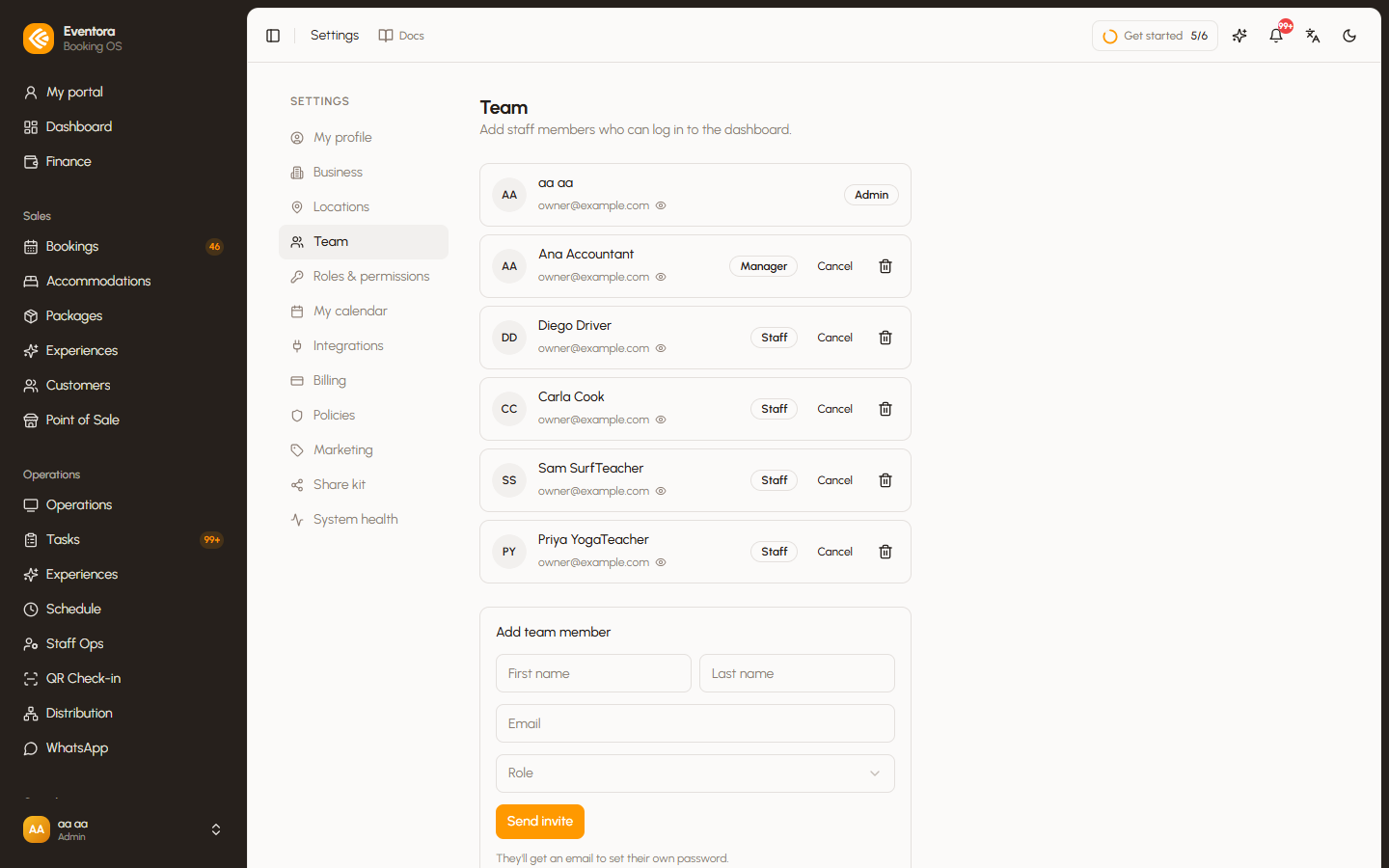
Invite teammates and assign roles that control what they can see and do.
Default roles
| Role | Access level |
|---|---|
| Owner | Full access including billing |
| Manager | Full operational access; limited sensitive settings |
| Staff | Day-to-day bookings, schedule, ops — not full settings |
For finer control, create custom roles under Settings → Roles.
Inviting a team member
- Go to Settings → Team
- Click Invite Member
- Enter their email address
- Select a role
- Click Send Invite
The invitee receives an email with a link to create their account. The invite appears as Pending until they accept.
Resending an invite
If the invitee did not receive the email, open the pending invite and click Resend.
Removing a team member
Click on a team member and select Remove. Their account access is revoked immediately. Existing bookings and records created by that user are not affected.
Changing a role
Open a team member's profile and select a new role from the dropdown. The change takes effect immediately.
Restricting access to specific locations
If your account has more than one location, each team member's edit panel also shows a location access picker — toggle which locations they can access. This only appears for multi-location accounts.
Owner account
There is always exactly one Owner per account. The Owner cannot be removed by other team members. To transfer ownership, contact Eventora support.