
Billing
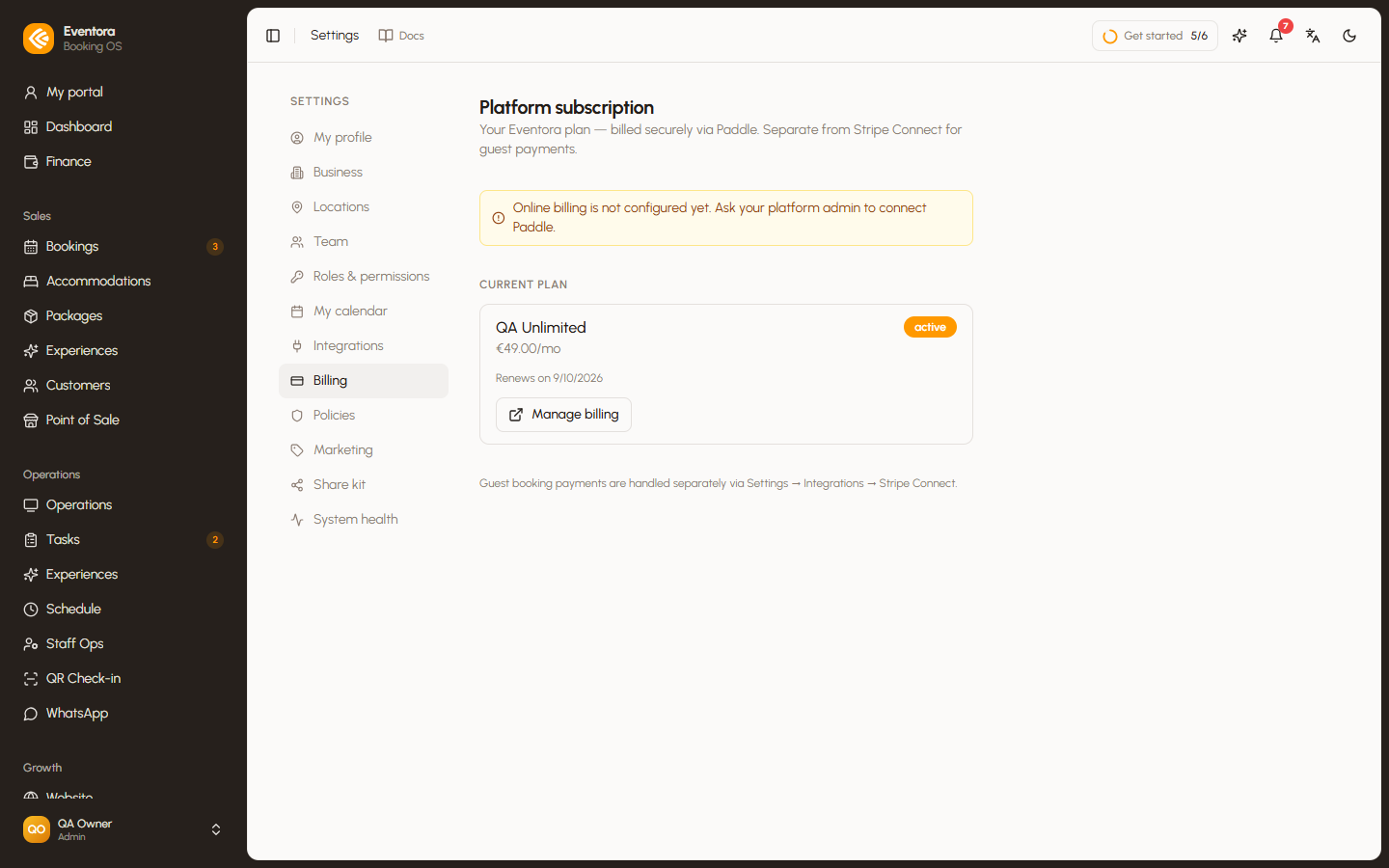
Manage your Eventora subscription under Settings → Billing. This is your operator subscription to the platform — completely separate from guest payments, which flow to your own Stripe account via Integrations.
Plans
Public plans (Starter, Growth, Scale, and custom) are listed on eventora.ai and use a flat monthly fee plus a small per-booking fee — 0% of guest revenue, no guest checkout fees from Eventora. This pricing structure is a marketing-site concept; the in-app plan cards themselves just show a plan name, an optional description, and a price per month/year.
Current plan
The Current plan card shows the plan name, price, and a status badge (active, trialing, past due, unpaid), plus the renewal date when known. If the subscription is past due or unpaid, the card turns red with a warning and an Update payment method button instead.
There is no invoice list or usage meter on this screen itself — invoice history and payment method changes happen inside the Manage billing button, which opens Eventora's hosted billing portal (Paddle) in a new tab. Usage against your plan's monthly limits is shown elsewhere — see below.
Plan usage
Eventora meters several things against your plan: AI usage (tokens), AI image/video generation, bookings created per month, social posts, marketing emails sent, locations, and team members. A Plan usage icon sits in the top bar (next to the AI/notifications icons) at all times — click it for a full list of every metered limit, with Unlimited shown for anything your plan doesn't cap. The icon stays neutral in normal use; once any limit crosses 80% of its cap, it switches to an amber (or red, at 100%) warning with a count next to it. At 100%, the specific action is blocked (e.g. Ask AI stops accepting new questions) rather than failing silently.
Changing plans
If there's no active subscription, or more than one plan is available, a Choose a plan section lists every plan as a card with a Subscribe button — clicking it opens an embedded checkout. The current plan is marked with a Current badge instead of a button.
Not configured
If online billing isn't connected for the platform yet, this screen shows an amber banner ("Online billing is not configured yet — ask your platform admin to connect Paddle") and plan actions are disabled, as in the screenshot above.
Permissions
Only users whose role has write access to the Billing resource see the action buttons (Manage billing, Update payment method, Subscribe). Read-only users see the same plan/status information without buttons.
Real-world scenario
A retreat center is on a free trial that's about to expire. The Owner opens Settings → Billing, sees the trial status badge and the plans under Choose a plan, and clicks Subscribe on the Growth plan. A checkout overlay opens in place; once payment completes, the page refreshes to show the new Current plan card with an active status and renewal date.
Guest card payments always go to your Stripe account via Integrations — never through this screen.
Related
- Integrations — connect Stripe for guest payments
- Roles & Permissions — control who can see Billing