
Email Templates
Reusable email layouts for campaigns and automations.
Open Email Templates from the Growth section.
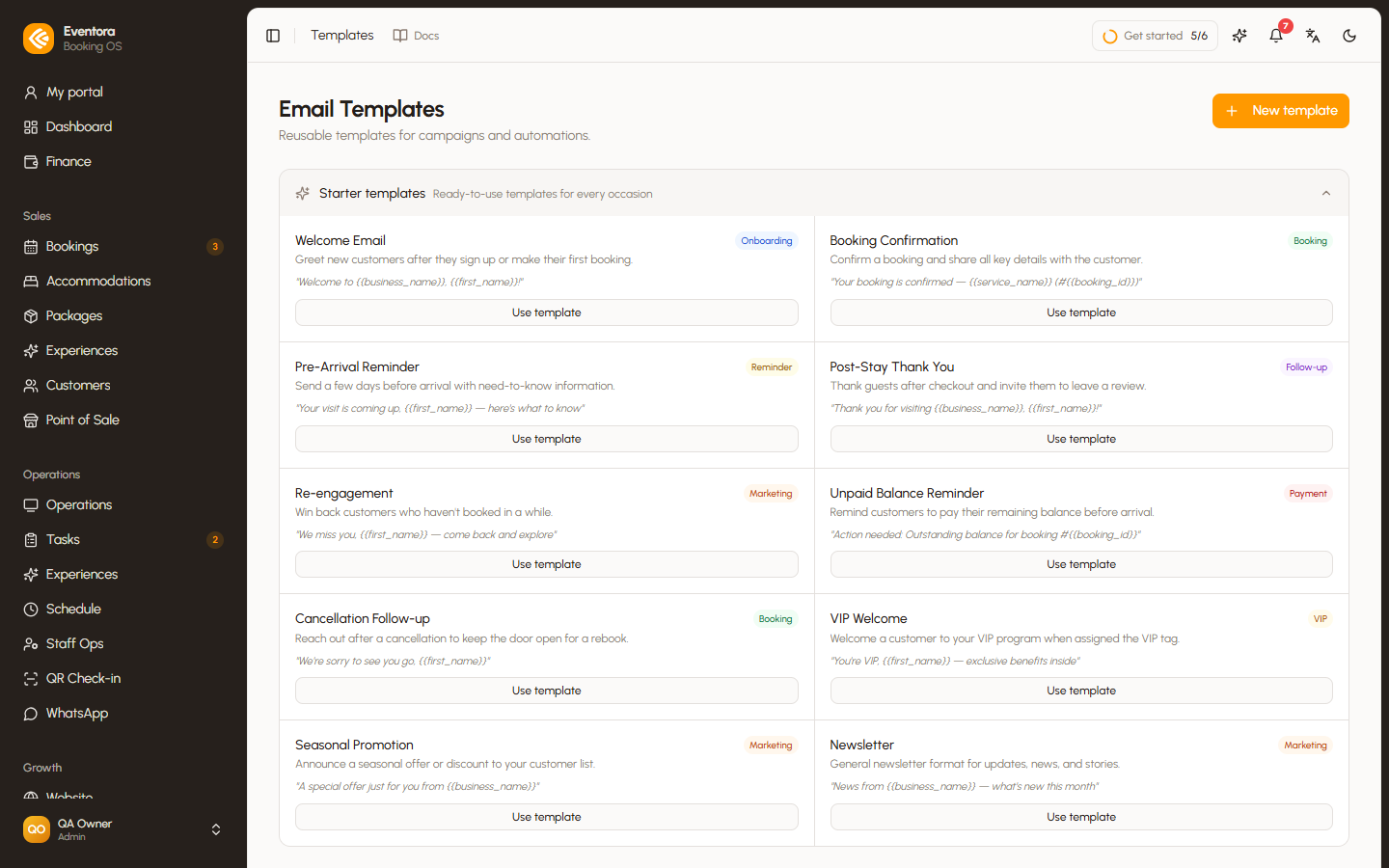
Starter template gallery
Instead of writing from scratch, pick from 10 ready-made starters covering common sends — Welcome Email, Booking Confirmation, Pre-Arrival Reminder, Post-Stay Thank You, Re-engagement, Unpaid Balance Reminder, Cancellation Follow-up, VIP Welcome, Seasonal Promotion, and Newsletter. Click Use template to open the editor prefilled with it (starters open straight into Preview mode so you see the design immediately), then customize.
Click New Template to start from a blank template instead — this opens in Edit mode.
Editing
The editor has three views, toggled at the top: Edit (plain subject/body fields), Preview (rendered email), and Html (raw source). A template requires a name, a subject line, and non-empty body content — the editor blocks saving and highlights the missing fields otherwise.
Managing existing templates
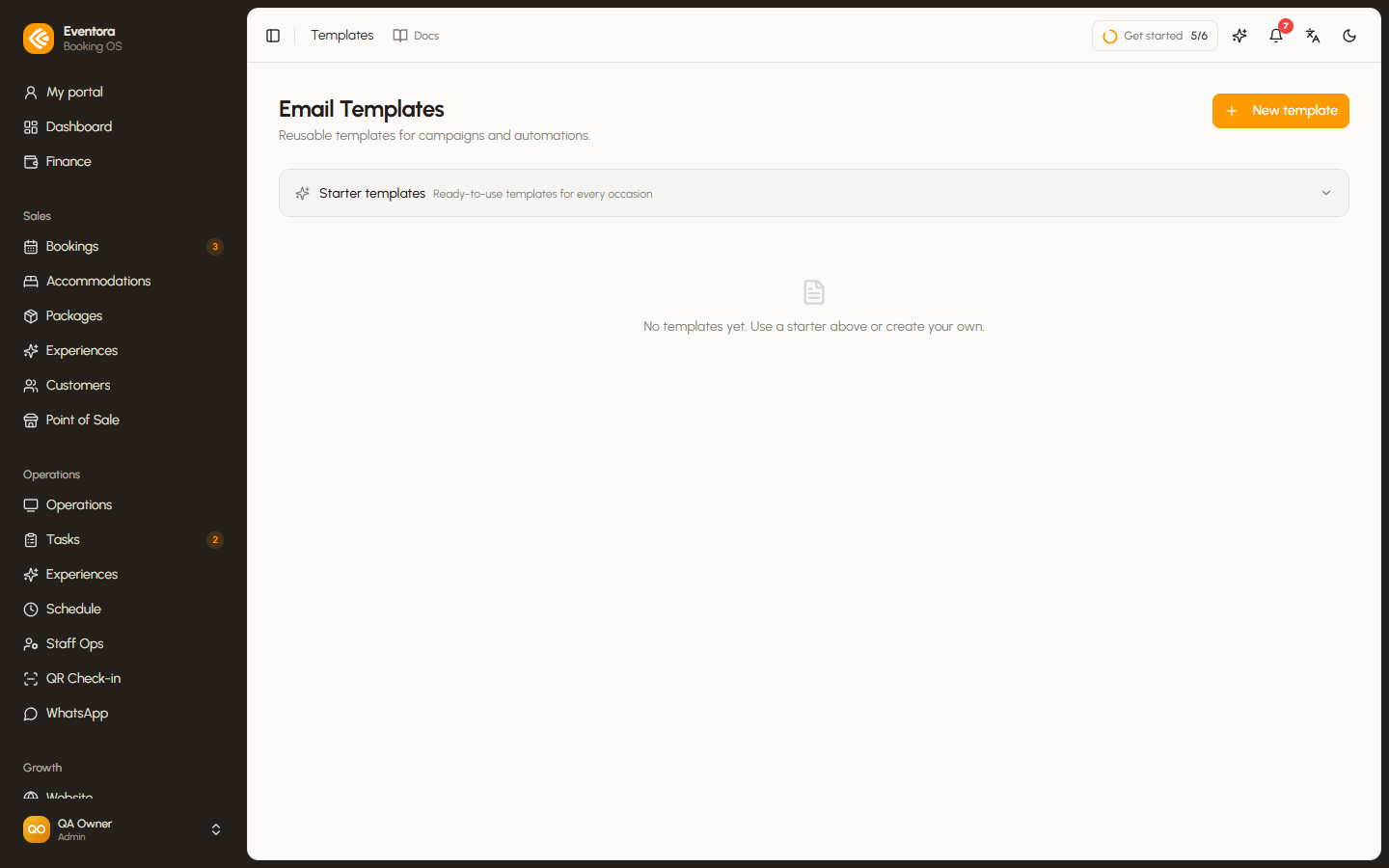
Each saved template ("Your templates") has:
- Copy — copies
Subject: …plus the full body to your clipboard, to paste elsewhere - Edit (pencil) — reopens the editor prefilled with the saved template, for users with write access
- Delete (trash) — asks for confirmation before permanently removing it
Merge variables
Available in the subject and body: , , , , , , , , .
Using templates elsewhere
Templates are selected by name wherever an email needs to be sent — the Send email action in Automations, and email sends in Email Campaigns. If no templates exist yet, both flows show a hint pointing back to this page.
Real-world scenario
A yoga retreat wants a payment reminder sent before balances come due. They open Email Templates, use the Unpaid Balance Reminder starter, adjust the wording in Preview mode, save it, then pick it as the action for a payment-reminder rule in Automations.