
Staff Schedule
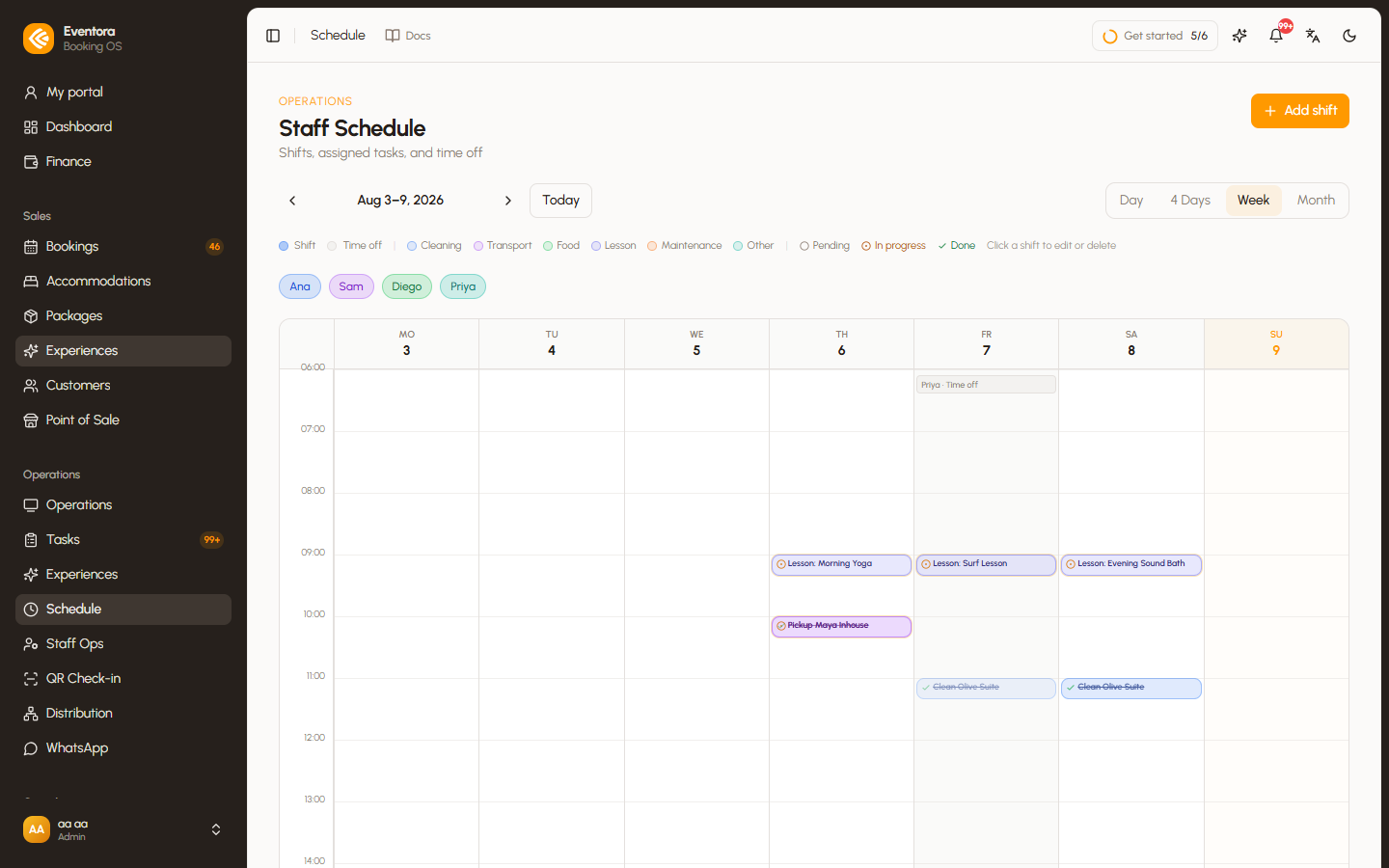
Staff Schedule is the roster calendar: who is on duty, which open tasks they own, and who is on time off — for the day, 4 days, week, or month you are viewing.
What you see
Three layers on the same calendar:
| Layer | Meaning |
|---|---|
| Shift | Coverage block (who works which hours) |
| Task | Assigned open job with a due date (dashed / amber styling) |
| Time off | Absence from Staff Ops (muted / grey) |
Staff chips list anyone who appears via a shift, task, or time off in the current range — not only people with shifts.
Viewing
Use the date controls and Day / 4 Days / Week / Month to change the range. The app loads only that range (not all history).
Adding a shift
- Click Add shift
- Select the staff member
- Select location (if you have more than one)
- Pick one or more days
- Set start and end time
- Optional note → Save
If the person has time off on a selected day, you get a confirm dialog and can still add the shift (manual override).
You can edit or delete an existing shift from its detail dialog.
Staff must already be on your team — see Team & Roles.
Tasks on the calendar
Assigned open tasks (pending / in_progress) with a due date in range appear automatically. Click a task to open its detail sheet (same as Tasks). Completing or unassigning a task removes it from the calendar; the shift stays.
Tasks are not turned into shifts. Use Add shift when you need coverage hours.
Staff can also manage their assigned tasks from the Staff Portal.
Time off
Record absences under Staff Ops → Time Off, or let staff request leave from the portal. They show on this calendar. Click a time-off chip for details and a link back to Staff Ops.
Tips
- Plan the week on Schedule; run the day from Operations.
- Prefer assigning tasks to people already on shift that day.
- Keep shift notes short (e.g. “Airport runs”).
- For personal calendar apps, staff should subscribe from Staff Portal → Calendar.