
Calendar & Timeline
Calendar view
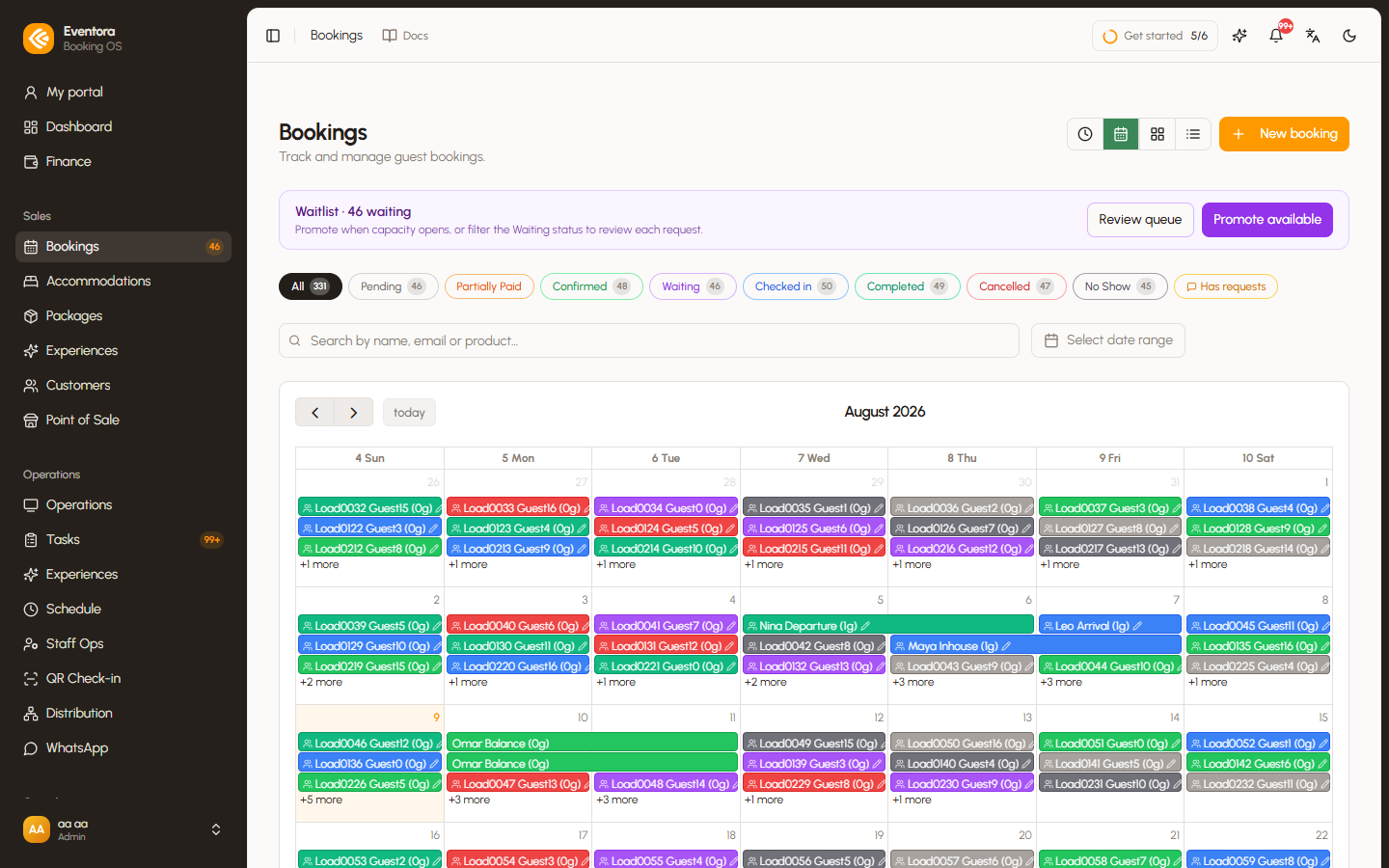
The calendar view shows all bookings on a monthly grid. It's useful for spotting gaps in availability and understanding overall occupancy at a glance.
Drag and drop
You can drag a booking to a different date directly on the calendar. A confirmation prompt appears before the change is saved.
Undo
After moving a booking, an Undo button appears briefly at the bottom of the screen. Click it to revert the change before it's confirmed.
Timeline view
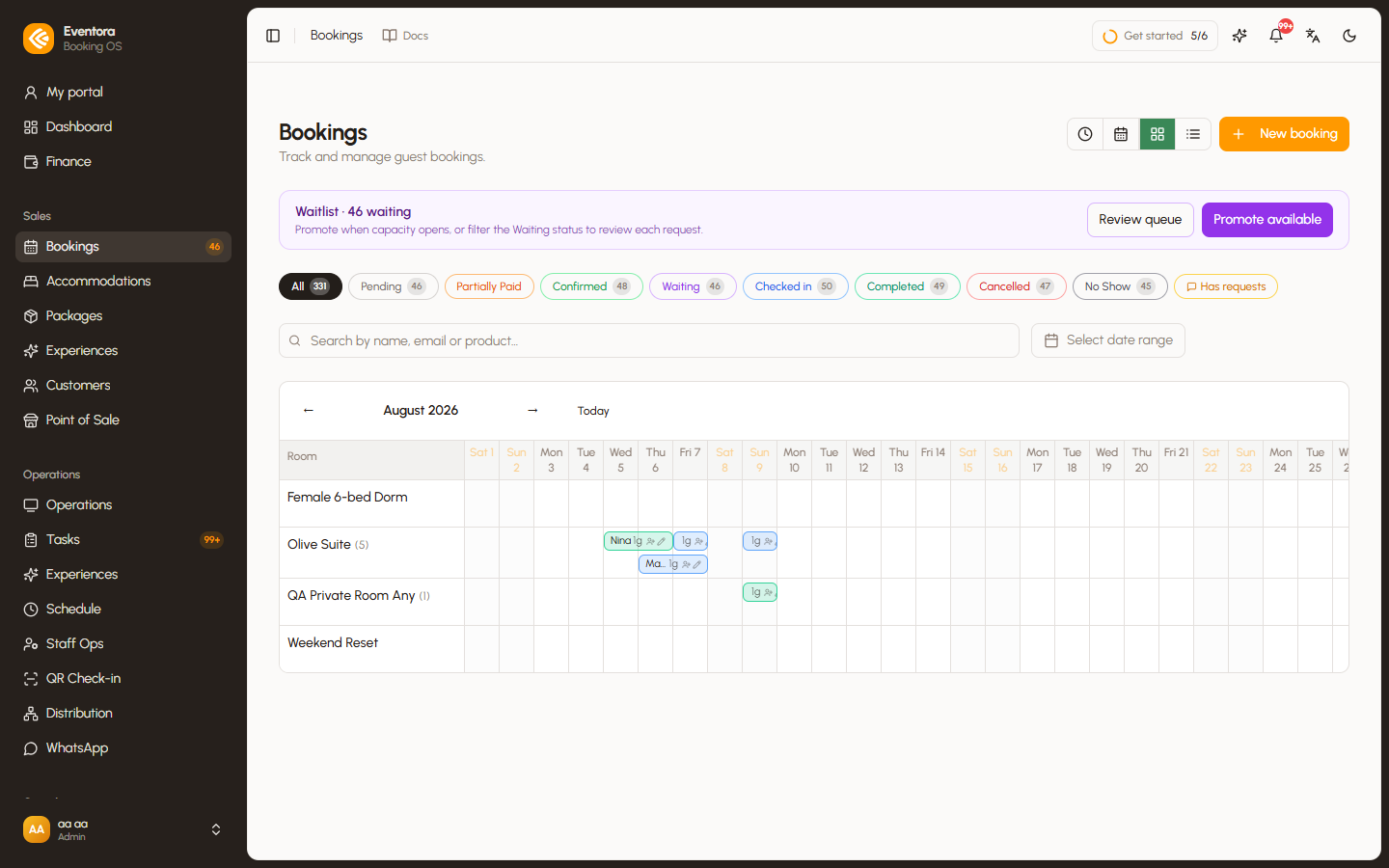
The timeline view displays a horizontal chart with one row per room or accommodation unit, and columns representing days. Guest names and group sizes appear inside each booking block.
This view is ideal for:
- Checking room-level availability before creating a manual booking
- Spotting back-to-back bookings with no turnover gap
- Communicating occupancy to front-desk staff
Tips
- Use the Calendar view for high-level planning and availability decisions.
- Use the Grid / Timeline view during daily operations to see what's happening room by room.
- Use the List view when you need to search or filter by guest or status.
- Status chip totals stay global while search filters the rows — useful when you only need one guest without losing the day’s counts.