
Roles & Permissions
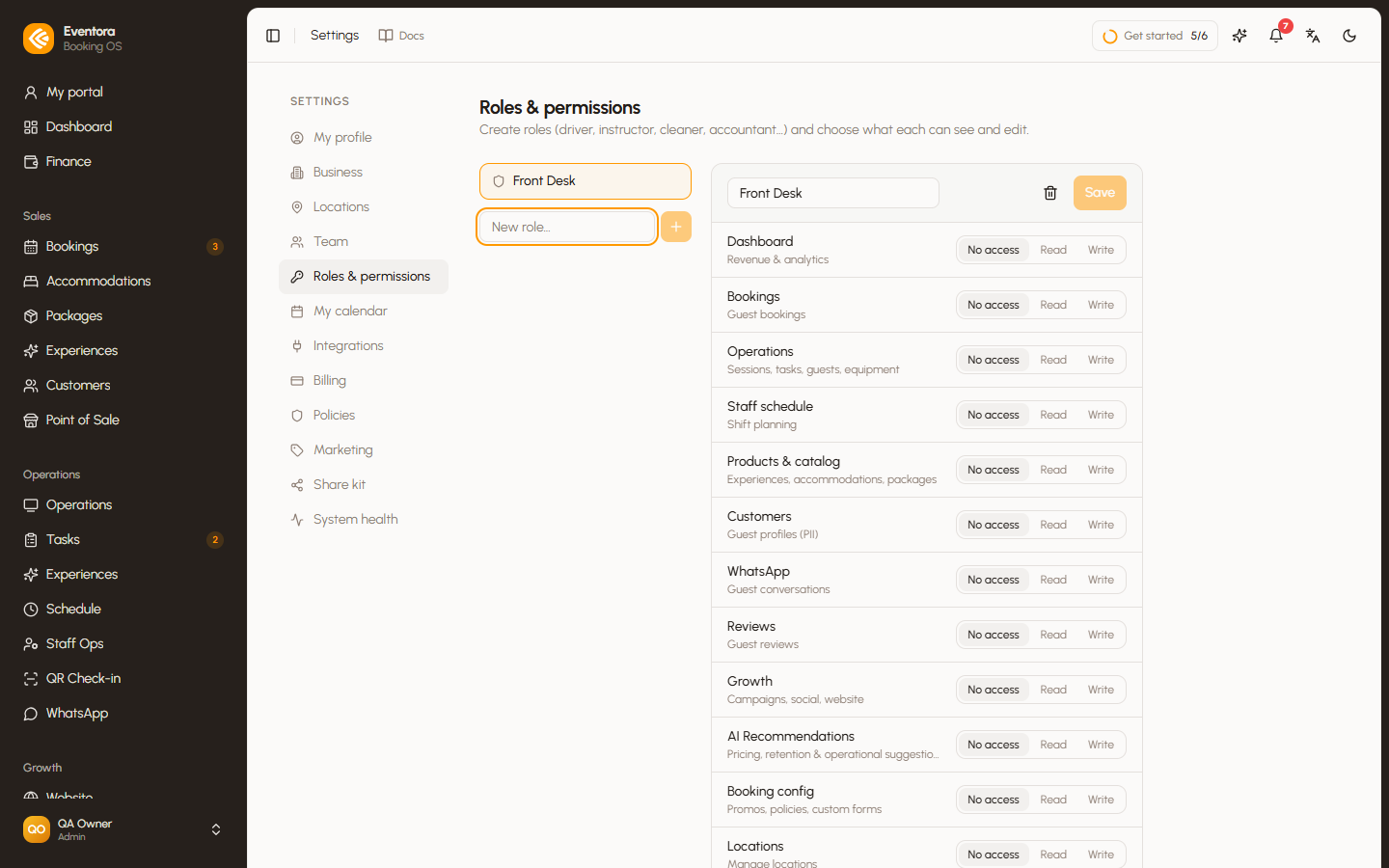
Beyond the seeded default roles, Eventora supports fully custom roles with per-resource, per-level permissions, managed under Settings → Roles.
Naming note: the seeded owner-equivalent role is stored and displayed as Admin, not "Owner" — Team refers to the same role as "Owner." Functionally they're the same all-access role; only the label differs depending on which screen you're looking at.
Default roles
| Role | Notes |
|---|---|
| Admin | The owner role — all-access, cannot be edited or deleted, and has no permission grid (the UI shows a plain "full access" panel instead) |
| Manager | Write access on most resources, read-only on AI Recommendations |
| Staff | Write on Bookings/Operations/Customers/WhatsApp; read on Staff schedule, Products, AI Recommendations |
Default roles are marked with a badge and their permissions can still be edited, but their name cannot be changed and they cannot be deleted.
Creating a custom role
Type a name into the field under the role list and click + (or press Enter). The new role is created with no permissions set and is auto-selected for editing.
Permission grid
Each role's editor lists every resource with a 3-way toggle: No access / Read / Write.
| Resource | Covers |
|---|---|
| Dashboard | Revenue & analytics |
| Bookings | Guest bookings |
| Operations | Sessions, tasks, guests, equipment |
| Staff schedule | Shift planning |
| Products & catalog | Experiences, accommodations, packages |
| Customers | Guest profiles (PII) |
| Guest conversations | |
| Reviews | Guest reviews |
| Growth | Campaigns, social, website |
| AI Recommendations | Pricing, retention & operational suggestions |
| Booking config | Promos, policies, custom forms |
| Locations | Manage locations |
| Business settings | Profile, waiver, marketing |
| Finance | Payments, invoices, receivables, POS & reports |
| Billing & payments | Stripe/Paddle connection |
| Integrations | OTA & webhooks |
| Team & roles | Manage users and roles |
There is no per-action granularity beyond these three levels — a role either has no access, can view, or can view and edit a given area.
Renaming, saving, and deleting
- Renaming a custom role: edit the name field in the editor header, then click Save (enabled once something changed).
- Deleting: the trash icon only appears for non-default roles and asks for confirmation.
- A role in use cannot be deleted. If any user still has that role, deletion is rejected with a message to reassign them first — there's no automatic fallback or cascade.
Assigning roles
Roles are assigned to people when inviting or editing them under Team.
Real-world scenario
A retreat center wants a Front Desk role that can see bookings and check guests in, but shouldn't touch finance or business settings. An Admin goes to Settings → Roles, types "Front Desk" and clicks +, sets Bookings and Operations to Write, sets Products and Staff schedule to Read, and leaves Finance, Billing & payments, Business settings, and Team & roles at No access. They save, then assign "Front Desk" to the reception staff under Team.