
Booking Pages & Domains
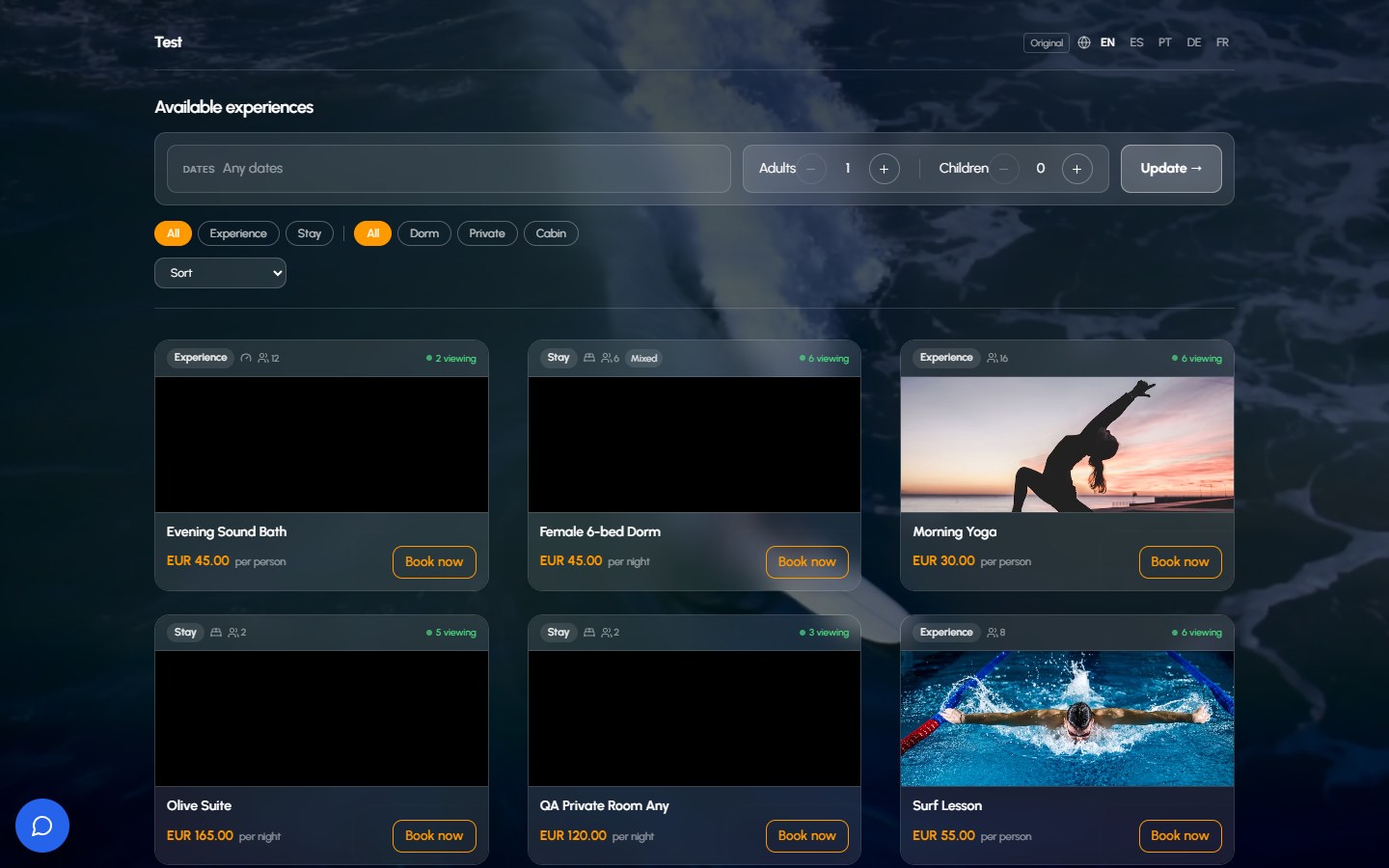
Every Eventora business can take direct bookings on a page you own — no marketplace in the middle.
URLs
| Type | Example |
|---|---|
| App booking path | https://app.eventora.ai/book/<your-slug> |
| Business subdomain | https://<your-slug>.eventora.ai |
| With location | https://app.eventora.ai/book/<your-slug>/<location-slug> |
| Package deep link | https://app.eventora.ai/book/<your-slug>/packages/<package-id> |
Set and change your slug in Settings → Business. Custom domains can be attached for your brand site / booking (see Website + domain settings in the app).
Guest flow
Typical guest journey (exact steps depend on vertical profile):
- Choose dates / session / time slot
- Select package, room, class, appointment, or rental
- Optionally choose a provider (appointments) or apply membership / package credits (classes)
- Add optional extras
- Enter details (and custom fields / waivers when required)
- Pay deposit or full amount via Stripe
- Receive confirmation
Soft hold countdown
When soft holds are enabled, capacity can be reserved while Stripe checkout is open. Guests see a countdown on the booking page. If the timer expires before payment completes, the hold is released and the slot may become available to others.
Atmosphere (background)
If you have not set a custom background video, image, or color in business / branding settings, Eventora picks a vertical default video (retreat, class, appointment, hospitality, or rental). Custom media always wins.
Availability
Shown inventory respects:
- Active schedules
- Capacity, soft holds, and existing bookings
- Visibility toggles on products / packages
- Provider availability for appointment slots
Waitlist
When a date is full, guests may join a waitlist from the public booking flow. Manage demand from operations / booking tools — there is no separate “Waitlist” top-level nav item.
Tips
- Keep photography and package copy guest-facing and calm
- Pair with the Website builder for a branded marketing site once bookings work
- New account? Follow First retreat in 30 minutes
- Choosing a vertical? See Vertical packs