
Automations
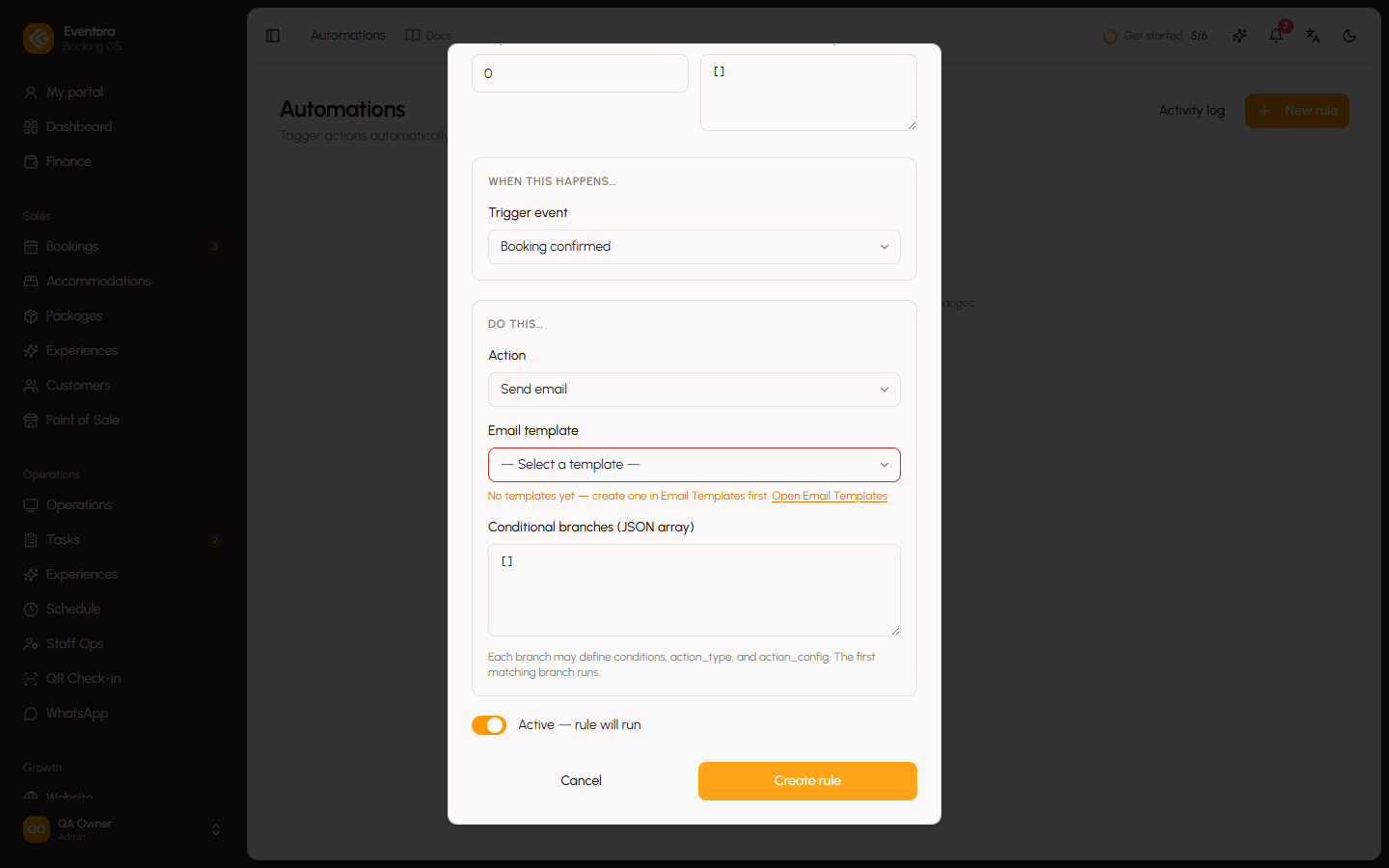
Automations run repeatable guest and ops workflows without manual busywork.
Triggers
| Trigger | Extra config |
|---|---|
| Booking confirmed | — |
| Tag assigned | Optional: restrict to one specific tag (default: any tag) |
| Lead stage changed | — |
| Customer created | — |
| Days since last booking | Days value required |
| Days since creation | Days value required |
Actions
| Action | You must pick |
|---|---|
| Send email | An email template (create one under Email Templates if the list is empty) |
| Change lead stage | A pipeline stage (create stages under Pipeline first) |
| Assign tag | A customer tag (create tags on Customers first) |
The editor will not save an incomplete rule — empty lists show a hint with a link to the page where you create the missing piece.
Advanced rule options
- Delay before action (minutes) — wait after the trigger fires before running the action. Note this delay counts from when the trigger fires (e.g. from the moment a booking is confirmed), not from a future date like arrival — there's no trigger tied to "N days before arrival" specifically.
- Conditions (JSON array) — extra conditions the trigger data must satisfy before the rule runs.
- Conditional branches (JSON array) — each branch defines its own conditions, action type, and action config; the first matching branch runs, letting one rule take different actions depending on the data.
Enabling and disabling rules
Each rule in the list has a toggle switch that flips active/paused immediately (no save step) — paused rules show a Paused badge and their trigger stops firing. Each row also shows the delay ("Runs immediately" or "Delay: N min") and, if scheduled, a "Next: …" timestamp.
Testing and activity
- Test rule (flask icon) runs a rule against a chosen customer without performing its real action — useful for checking a rule before turning it on.
- The activity log shows recent runs with a status per run: Completed, Failed, Pending, Skipped, or Simulated (from a test run), plus what action was taken and when.
Real-world scenario
A retreat center wants a thank-you email sent automatically a few days after a stay. They go to Growth → Automations → New rule, set the trigger to Booking confirmed, set a delay long enough to land after the typical stay length, and choose Send email with the Post-Stay Thank You template. Because the delay is relative to confirmation rather than the actual stay dates, this works best for predictable, short-lead-time bookings — for anything booked far in advance, a manual reminder or a WhatsApp/AI Recommendations nudge (below) is a better fit than a fixed-minutes delay.
For AI-driven payment/waiver nudges that pause when a guest is already chatting, see AI Recommendations (guest journey cards) instead of duplicating the same send in Automations.
End-of-week collection queues from Finance → Receivables → Close the week also land as AI recommendation cards — approve Send there rather than building a parallel Automations drip for the same balances.