
Website Builder
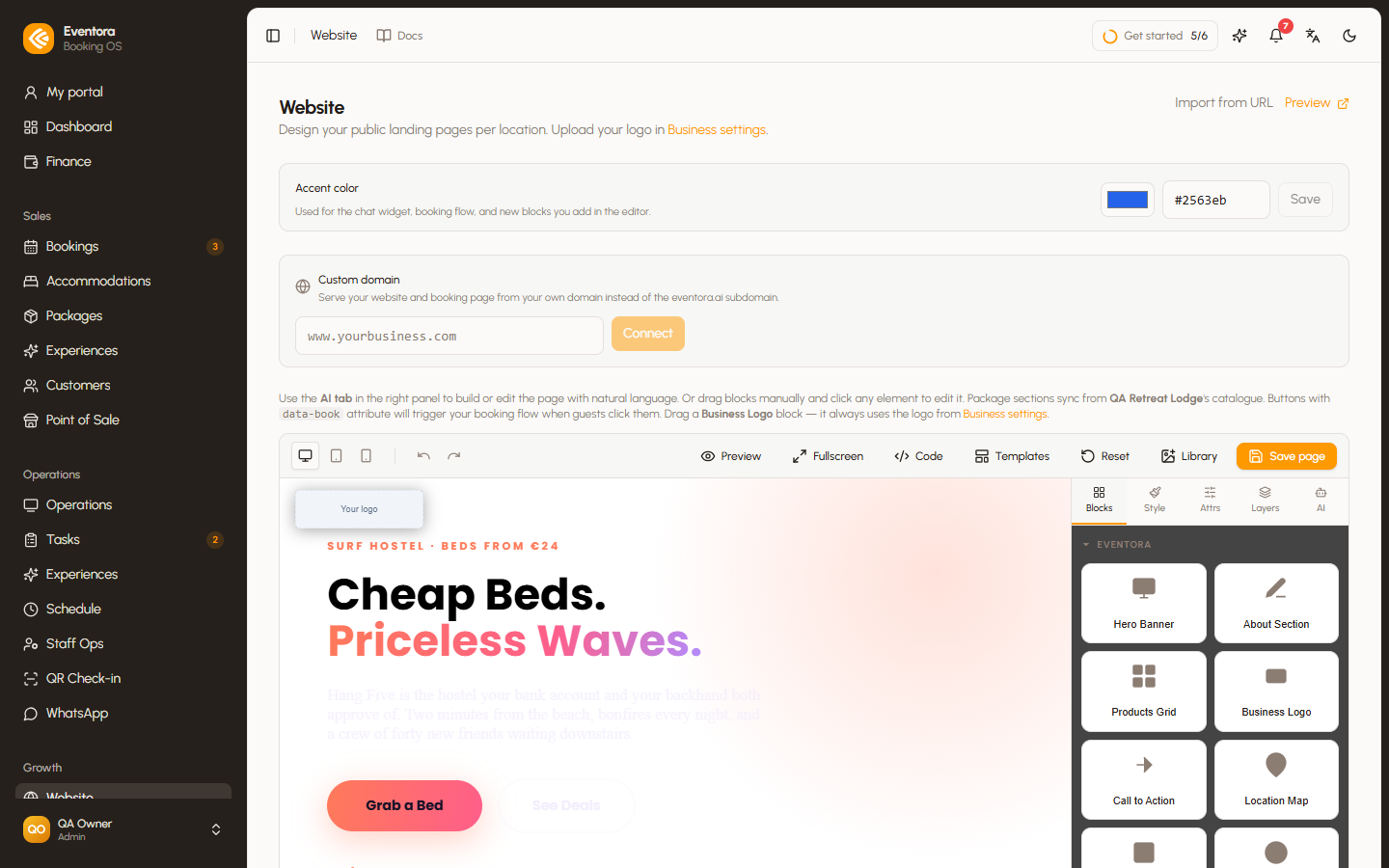
Website in the sidebar opens the visual site builder (GrapesJS-based). Use it for a branded marketing site that sits in front of your booking flows.
Typical setup
- Open Website
- Start from a template or blank canvas
- Edit copy, images, and sections
- Click Save page — this saves and publishes in one step (see below)
Editor layout
The builder has a toolbar and a right-hand panel with 5 tabs: Blocks, Style, Attrs, Layers, AI. Toolbar actions: device preview (Desktop/Tablet/Mobile), Undo/Redo, Preview (full-page render), Fullscreen, Code (raw HTML/CSS with an Apply button), Templates (a gallery to start from a pre-built layout), Reset (replaces the whole page with Eventora's built-in demo template — no confirmation dialog, so use carefully), Library (insert image/video from the Media Library), and Save page.
Blocks
Under Blocks, an "Eventora" category has business-aware blocks: Hero Banner, About Section, Products Grid (syncs live from the location's catalogue), Business Logo, Call to Action, and Location Map (renders the location's address as an embedded map with Directions/Street View links). A separate "Layout" category has generic Section/Container/Column blocks.
AI tab
The AI panel is a chat: describe a page in plain text, or attach a design image (or exported Figma frame, max 5MB) to clone it. Click an element on the canvas first to scope an edit to just that element. Same transparency note as elsewhere: review generated copy and layouts before publishing.
Publishing
Clicking Save page both saves the HTML/CSS to the location/business record and triggers a publish to the live site — there is no separate draft/staging step.
Brand color & multi-location pages
An accent-color picker (hex input + swatch) sets the color used across generated blocks, the chat widget, and the booking flow. Businesses with more than one location get a location switcher — each location can have its own page and its own preview URL.
Custom domain
A dedicated panel lets you connect a domain: enter it, get a CNAME target to add at your registrar, then click Check now to verify — status moves from pending DNS to active, with a Disconnect option at any time.
Import from your website
Onboarding (and Website → Import from URL) can pull a live public URL into Eventora: enter the URL and click Analyze website, then review before applying.
Review tabs
| Tab | What you see |
|---|---|
| Website preview | Responsive screenshots of the captured page (or a note that none were captured, with the HTML/CSS preview still available). |
| Pages and navigation | Same-domain pages discovered from the site's nav, with a section count per page. |
| Products/services | Bookable products detected on the page (name, type, price, description) — toggle individual products in or out before importing. |
| Import warnings | A single warning message if the AI extraction flagged something, or "No import warnings were reported." |
Eventora also detects a likely business type and vertical profile from the page content, shown alongside the preview.
Applying the import
Two independent checkboxes control what gets created:
- Import website into Eventora builder (HTML/CSS → GrapesJS) — with a sub-option to copy the site's images/videos into your Media Library for visual fidelity.
- Create products — creates the selected detected products as real Eventora products.
Click Import into Eventora to apply, Skip to website builder to start from a blank/template canvas instead, or Skip for now to go straight to Bookings.
What import does not guarantee
- Pixel-perfect matches
- Full SPA / authenticated app shells
- Every deep URL on the original site
- Perfect carousels or JS-only widgets
Always review the preview and detected products, then polish in the Website builder.
Booking CTAs
Link buttons to:
https://app.eventora.ai/book/<slug>- or your subdomain / custom domain booking routes
Media
Reuse assets from the Media Library.
The Website AI tab helps build and edit pages. Review generated copy and layouts before publishing. See AI transparency.
Real-world scenario
An operator running a surf camp opens Website and types a prompt in the AI tab like "Build a landing page for my surf camp." They get a hero + about + products-grid + FAQ page back, drop in a Location Map block so guests can find the beach house, set the accent color to match their logo, and click Save page — the site is live on their Eventora subdomain within seconds.