
Bookings Overview
The Bookings section manages every reservation — packages, stays, and experiences — through the full lifecycle.
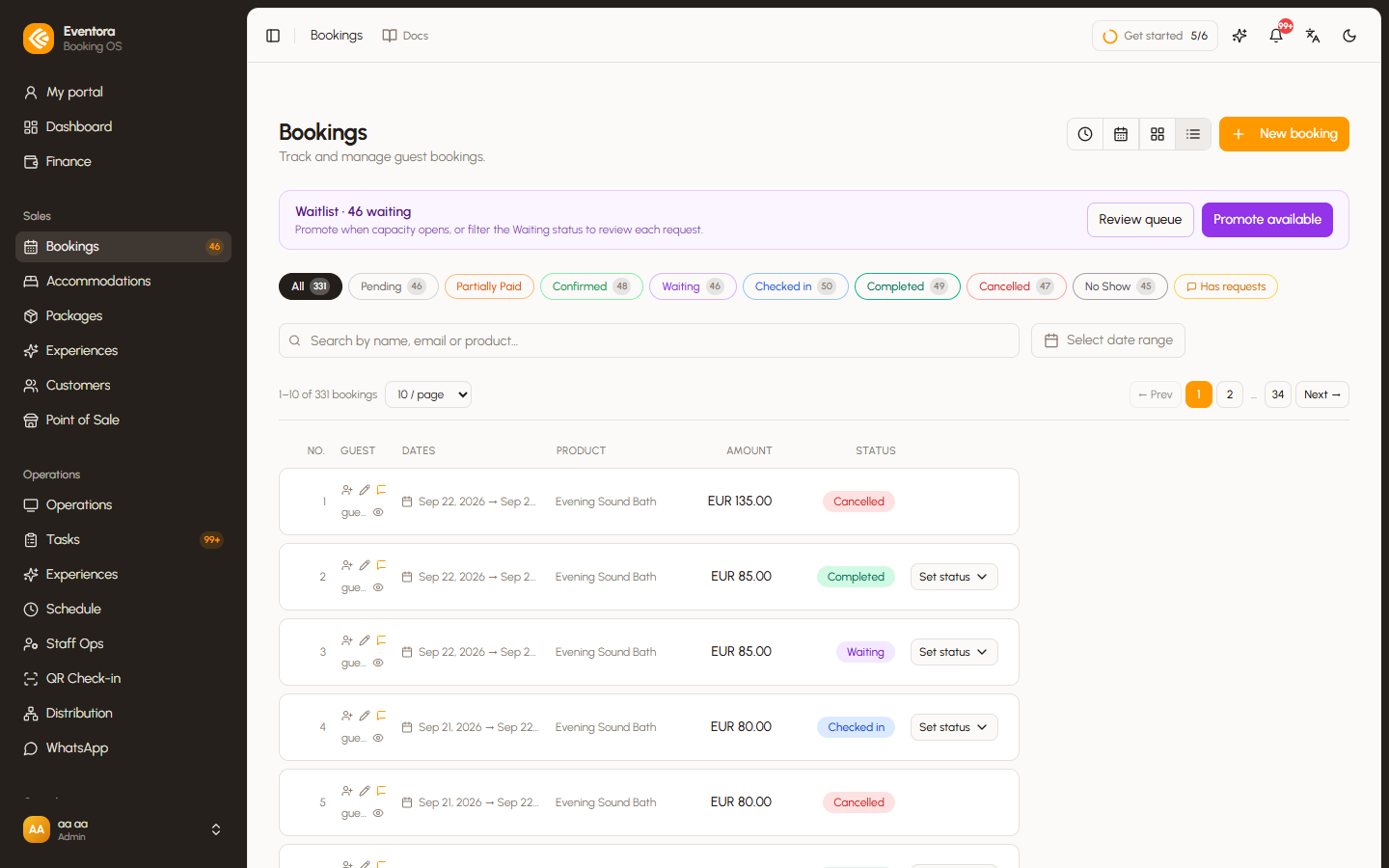
Views
Switch views with the icon buttons next to New booking:
| View | Best for |
|---|---|
| List | Scanning bookings with filters and search |
| Calendar | Monthly grid of occupancy and activities |
| Grid / Timeline | Room-by-room occupancy across days |
| Day | Dense single-day schedule |
Creating a booking
Click New booking (top right). Search for an existing guest (type at least a few characters — the picker does not dump the full customer list), or create a new guest with name / email / phone. Then choose product, dates, guest count, and notes or promo codes.
Manual bookings are flagged as manually created in the audit trail.
Searching and filtering
Use the search bar to find bookings by guest name, email, or product name. Status chips (Pending, Confirmed, Waiting, Checked in, …) show global counts for the business — search narrows the rows underneath without rewriting those totals. A short hint under the search bar confirms when a filter is active.
Booking detail panel
Click any booking to open the detail panel on the right. From here you can:
- Edit customer info, items, notes, and promo codes
- Change status (see Booking Statuses)
- Download invoice as PDF
- Process a refund — the cancellation policy is applied automatically
- Send a payment link for the remaining balance
- Record a payment — folio Due updates with collected amounts (no stale “still owed” flash after pay)
- Review folio extras when the vertical supports guest folio (POS room charges, add-on spend)
Recurring bookings
A single-item booking's detail panel has a Repeat action that opens Create recurring bookings: choose a frequency (every week / every 2 weeks / every month) and a number of occurrences (2–52), and Eventora creates the full series in one step.
Pagination
For businesses with large booking volumes, results are paginated. Use the pagination controls at the bottom of the list to navigate pages.
Guest manage link
Confirmation emails include a manage booking link to the guest portal. Guests can pay a balance, update details, and Add to Calendar (Google / Outlook / Apple / .ics). See Calendar Sync.